Good practices - Very important information
Note
For more information, you can consult User’s Guide manual (959 pages!). The name of the file: ZyWALL USG 20_2.21_Ed4.pdf
Note
Or you can consult the inline manual, at this URL http://www.manualslib.com/manual/363461/Zyxel-Communications-Zywall-Usg-20.html
Starting and Stopping the ZyWALL
See page 34.
Here are some of the ways to start and stop the ZyWALL.
Warning
Always use Maintenance > Shutdown > Shutdown or the shutdown command before you turn off the ZyWALL or remove the power.
Not doing so can cause the firmware to become corrupt!
| METHOD | DESCRIPTION |
|---|---|
| Turning on the power | A cold start occurs when you turn on the power to the ZyWALL. The ZyWALL powers up, checks the hardware, and starts the system processes. |
| Rebooting the ZyWALL | A warm start (without powering down and powering up again) occurs when you use the Reboot button in the Reboot screen or when you use the reboot command. The ZyWALL writes all cached data to the local storage, stops the system processes, and then does a warm start. |
| Using the RESET button | If you press the RESET button, the ZyWALL sets the configuration to its default values and then reboots. |
| Clicking Maintenance >Shutdown >Shutdown or using the shutdown command | Clicking Maintenance > Shutdown > Shutdown or using the shutdown command writes all cached data to the local storage and stops the system processes. Wait for the device to shut down and then manually turn off or remove the power. It does not turn off the power. |
| Disconnecting the power | Power off occurs when you turn off the power to the ZyWALL. TheZyWALL simply turns off. It does not stop the system processes or write cached data to local storage. |
The ZyWALL does not stop or start the system processes when you apply configuration files or run shell scripts although you may temporarily lose access to network resources.
Resetting the ZyWALL
See page 738.
Note
You can do this, with the web configurator. See The system-default.conf file subsection.
If you cannot access the ZyWALL by any method, try restarting it by turning the power off and then on again. If you still cannot access the ZyWALL by any method or you forget the administrator password(s), you can reset the ZyWALL to its factory-default settings. Any configuration files or shell scripts that you saved on the ZyWALL should still be available afterwards.
Use the following procedure to reset the ZyWALL to its factory-default settings. This overwrites the settings in the startup-config.conf file with the settings in the system-default.conf file.`
Note
This procedure removes the current configuration. If you want to reboot the device without changing the current configuration, see chapter 48 on page 723.
- Make sure the SYS LED is on and not blinking.
- Press the RESET button and hold it until the SYS LED begins to blink. (This usually takes about five seconds.)
- Release the RESET button, and wait for the ZyWALL to restart. You should be able to access the ZyWALL using the default settings.
Firmware upgrade
See page 700.
Note
How to do it?
Maintenance > File Manager > Firmware Package
Procedure
- Use Browser to login into ZyWALL as administrator.
- Click Maintenance > File Manager > Configuration File to open the Configuration File screen. Use the Configuration File screen to backup current configuration file.
- Find firmware at www.zyxel.com in a file that (usually) uses the system model name with the .bin extension, for example, “300BDQ0C0.bin”.
- Click Maintenance > File Manager > Firmware Package to open the Firmware Package screen. Browser to the location of firmware package and then click Upload. The ZyWALL automatically reboots after a successful upload.
- After several minutes, the system is successfully upgraded to newest version.
My upgrade
My current version:
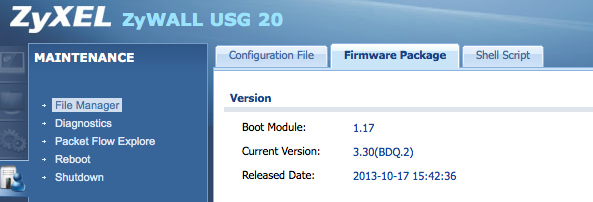
First, I download the last Zywall USG 20 Firmware at this URL: https://www.studerus.ch/fr/support/downloadcenter/
Reference: 3.30(BDQ.7)C0 Date: 23.01.2015 Package: ZyWALL USG 20_3 After I click Maintenance > File Manager > Configuration File to open the Configuration File screen, and backup my configuration’s files in an directory:
- htm-default.conf
- lastgood.conf
- startup-config.conf
- system-default.conf
My firmware name is: 330BDQ7C0.bin (found in the Package “ZyWALL USG 20_3”).
I click Maintenance > File Manager > Firmware Package to open the Firmware Package screen. Then I find the location of firmware package and click Upload.
See below the update of the Zywall:
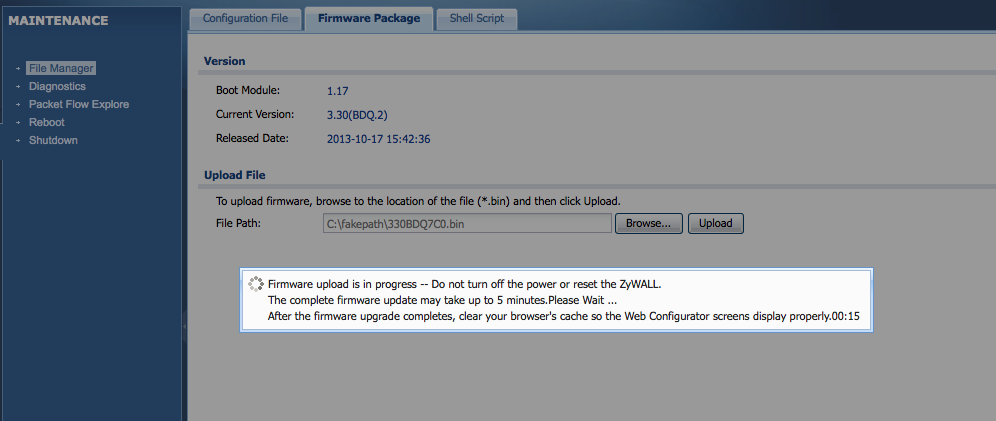
and, the same thing, with the console mode:
[Update Filesystem]
        Updating Filesystem
        [/util/zld_fsextract]
..
        done
[Update Kernel]
        Extracting Kernel Image
        .
        done
        Writing Kernel Image ...done
        Validating Kernel ... done
Restarting system.
FLASH: AMD 16M

BootModule Version: V1.17 | 12/01/2011 05:20:17
DRAM: Size = 256 Mbytes

Kernel Version: V2.4.27 | 2015-01-08 20:05:24
ZLD Version: V3.30(BDQ.7) | 2015-01-13 16:28:21

Press any key to enter debug mode within 1 seconds.
.....................


BM cmd line: console=ttyS0,115200 root=/dev/ram init=zyinit "-r /dev/sda", address: 0x100000

Uncompressing Linux...done.
Start to check file system...
/dev/sda2: 27/16488 files (3.7% non-contiguous), 61002/65888 blocks
/dev/sda3: 92/9280 files (3.3% non-contiguous), 9851/37120 blocks
Done

INIT: version 2.86 booting
Initializing Debug Account Authentication Seed (DAAS)... done.
Setting the System Clock using the Hardware Clock as reference...System Clock set. Local time: Thu Apr  5
INIT: Entering runlevel: 3
Starting zylog daemon: zylogd zylog starts.
Starting syslog-ng.
Starting ZLD Wrapper Daemon....
Starting uam daemon.
Starting myzyxel daemon.
Starting periodic command scheduler: cron.
Start ZyWALL system daemon....
Check signature package
.......................................
Got LINK_CHANGE
Port [0] Copper is up --> Group [0] is up
...........................................Applying system configuration file, please wait...
..........
Got LINK_CHANGE
Port [1] Copper is up --> Group [1] is up
...................................ZyWALL system is configured successfully with startup-config.conf

Welcome to ZyWALL USG 20

Username:
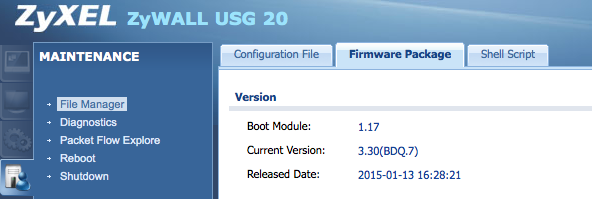
After several minutes (it wasn’t very long, 3 or 4 minutes), the system is successfully upgraded to newest version.
You can see this on the web page below:
Acces to configuration Files
Note
How to do it?
Maintenance > File Manager > Configuration Files
Use the Configuration File screen to store, run, and name configuration files.
Note
You can also download configuration files from the ZyWALL to your computer and upload configuration files from your computer to the ZyWALL.
The system-default.conf file
The system-default.conf file contains the ZyWALL’s default settings.
Select this file and click Apply to reset all of the ZyWALL settings to the factory defaults.
Note
This configuration file is included when you upload a firmware package.
The startup-config.conf file
The startup-config.conf file is the configuration file that the ZyWALL is currently using. If you make and save changes during your management session, the changes are applied to this configuration file. The ZyWALL applies configuration changes made in the Web Configurator to the configuration file when you click Apply or OK. It applies configuration changes made via commands when you use the write command (console mode).
The lastgood.conf file
The lastgood.conf is the most recently used (valid) configuration file that was saved when the device last restarted. If you upload and apply a configuration file with an error, you can apply lastgood.conf to return to a valid configuration.